Importing files
Especially for systems already in production, a common scenario is to have most displays - or even all of them - already developed using the same tool. As much as one would want to have them ported to a web-native application, redrawing everything in another tool can be very time-consuming task.
For that reason, WEISS provides methods to facilitate the import of existing displays from other tools, reducing the manual effort required to recreate them in a web-native environment.
Warning
An imported display should be treated as a starting point to save time and effort. Always test it
with the intended IOC and review the complete display before making it available to operators.
For now, WEISS supports importing displays from CS-Studio/Phoebus only. Other tools will be
considered in future updates.
From CS-Studio
WEISS currently supports importing Phoebus Display Builder files (.bob), the display format used
by modern CS-Studio installations. The importer converts the display into WEISS widgets so you can
continue editing it in the browser or use it right away.
Make sure you have things ready
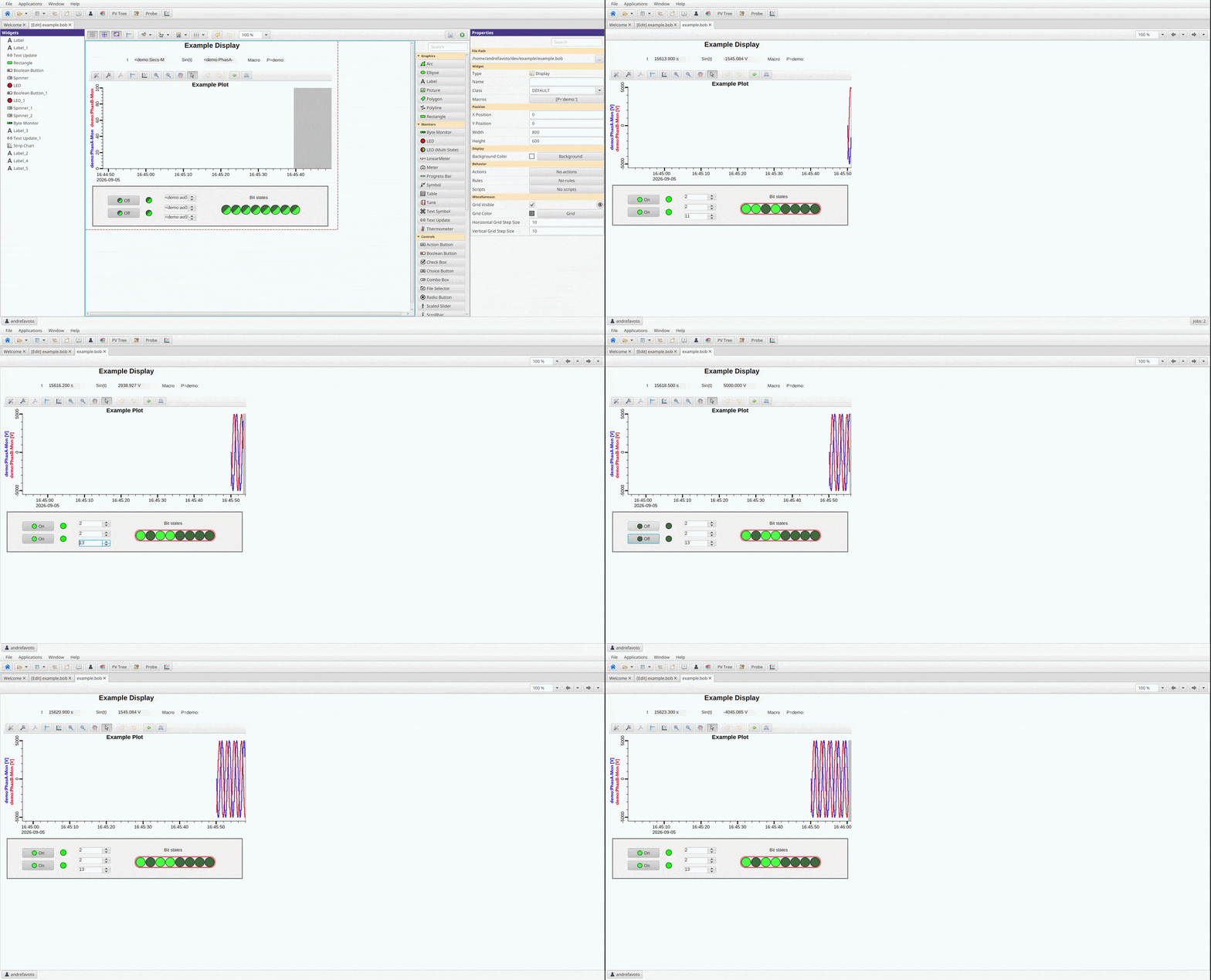
Open the display you want to import in CS-Studio/Phoebus and check that it works as expected. The
extension accepted is a .bob file only, so check that it is also saved on this format.
Be sure to have all image files or embedded displays used by your OPI at hand, as they will also need to be uploaded or imported.
Import the display
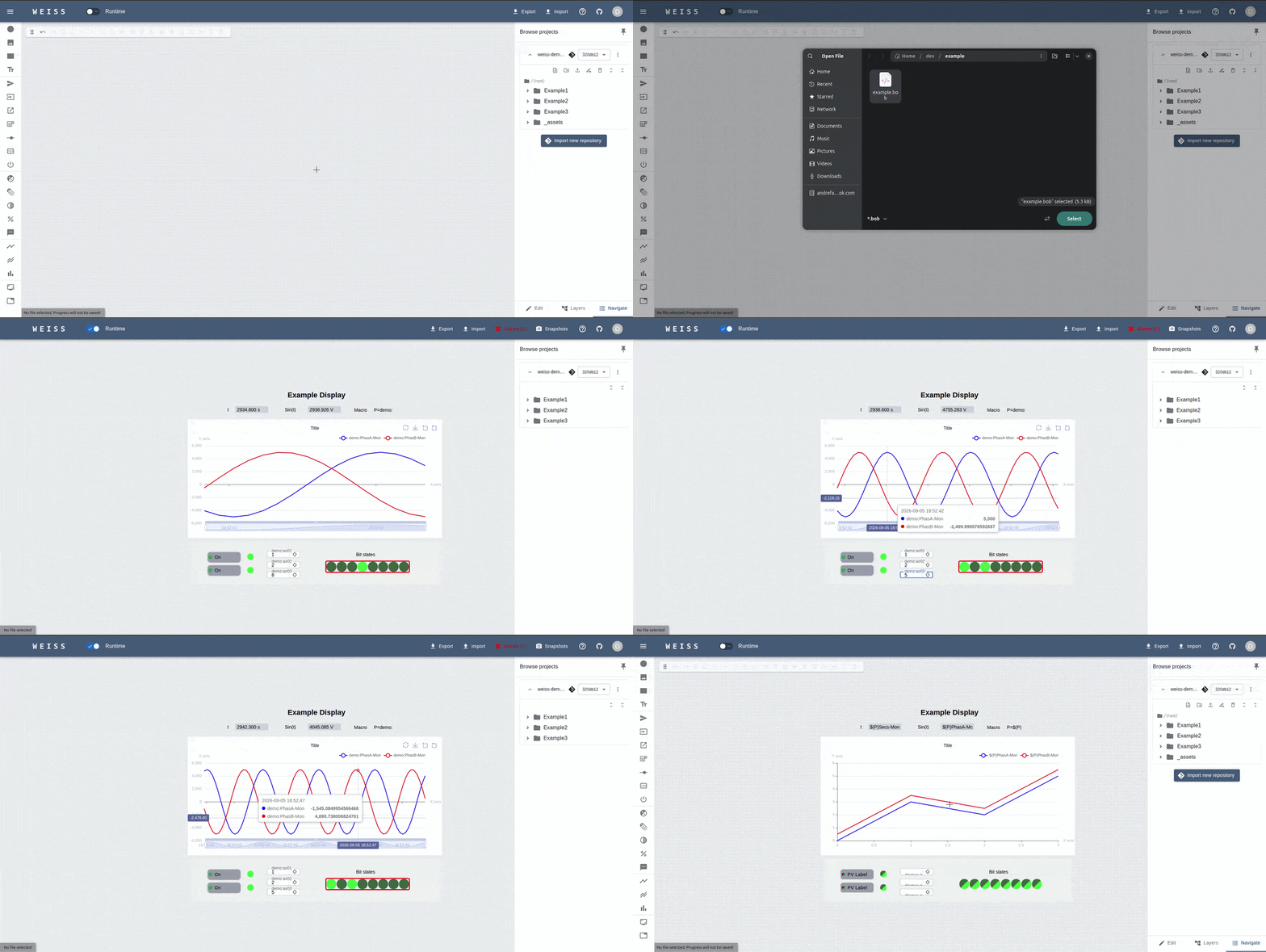
With the WEISS app running, login as a “Developer” and create a new file with the desired name.
Click Import in the application header, select From CSS/Phoebus, and choose the .bob file
from your computer. Before the import starts, WEISS will show a warning that the result may require
validation. Confirm the message to continue. The converted widgets will be added to the current OPI.
If the display uses pictures, upload the corresponding .svg, .png, .jpg, or .jpeg files to
the same repository. Make sure the paths used by the imported Image widgets match the paths of the
uploaded files.
For embedded displays, import each referenced .bob file using the same proccess as the main
display. Make sure the path on the main display matches the location of the imported files.
Important
Not all Phoebus widgets and features are supported. The unsupported widgets will be substituted by a dashed outline as placeholder, and a warning will be shown. Check next section for details on supported widgets and features.
Review the conversion
The goal of this tool is to reduce the manual effort required to recreate already existent displays, but does not eliminate the need for checking and validating your OPI in WEISS. Manual adjustments may be needed, especially for more complex widgets or rules.
The current widget support is:
Phoebus type |
WEISS widget |
Status |
|---|---|---|
|
|
✅ |
|
|
✅ |
|
|
✅ |
|
|
✅ map based on action type |
|
|
✅ |
|
|
✅ |
|
|
✅ |
|
|
✅ |
|
|
✅ |
|
|
✅ |
|
|
✅ |
|
|
✅ |
|
|
✅ |
|
|
✅ |
|
|
✅ |
|
|
✅ |
|
|
✅ |
|
|
✅ per-tab colors not supported |
|
|
✅ |
|
|
✅ |
|
— |
🔶 not implemented |
|
— |
🔶 not implemented |
|
— |
🔶 not implemented |
|
— |
🔶 not implemented |
|
— |
🔶 not implemented |
|
— |
🔶 not implemented |
|
— |
🔶 not implemented |
|
— |
🔶 not implemented |
|
— |
🔶 not implemented |
|
— |
🔶 not implemented |
|
— |
🔶 not implemented |
|
— |
🔶 not implemented |
|
— |
🔶 not implemented |
|
— |
🔶 not implemented |
|
— |
🔶 not implemented |
|
— |
🔶 not implemented |
|
— |
❌ not planned |
|
— |
❌ not planned |
|
— |
❌ not planned |
|
— |
❌ not planned |
|
— |
❌ not planned |
|
— |
❌ not planned |
|
— |
❌ not planned |
|
— |
❌ not planned |
Rules and scripts are currently not implemented for the imported displays and need to be added manually using the WEISS interface.
Test, commit, and deploy
After checking PV names and macros, switch to Runtime mode and verify that the imported widgets connect to their PVs and the display behaves as expected.
When the OPI is ready, you can then commit and deploy it using the workflow described in the first web OPI tutorial.